

Variables#
What is a variable?#
In computer science, a variable is like a container that holds information. This information can be a number, a word, or something else. For example, if you’re writing a game, you might have a variable to keep track of the player’s score. Every time the player scores a point, the computer changes the number in that variable. Variables help computers remember things while running a program, making it possible to do all kinds of tasks, like simple math, keeping track of a game’s progress, or storing sensor data.
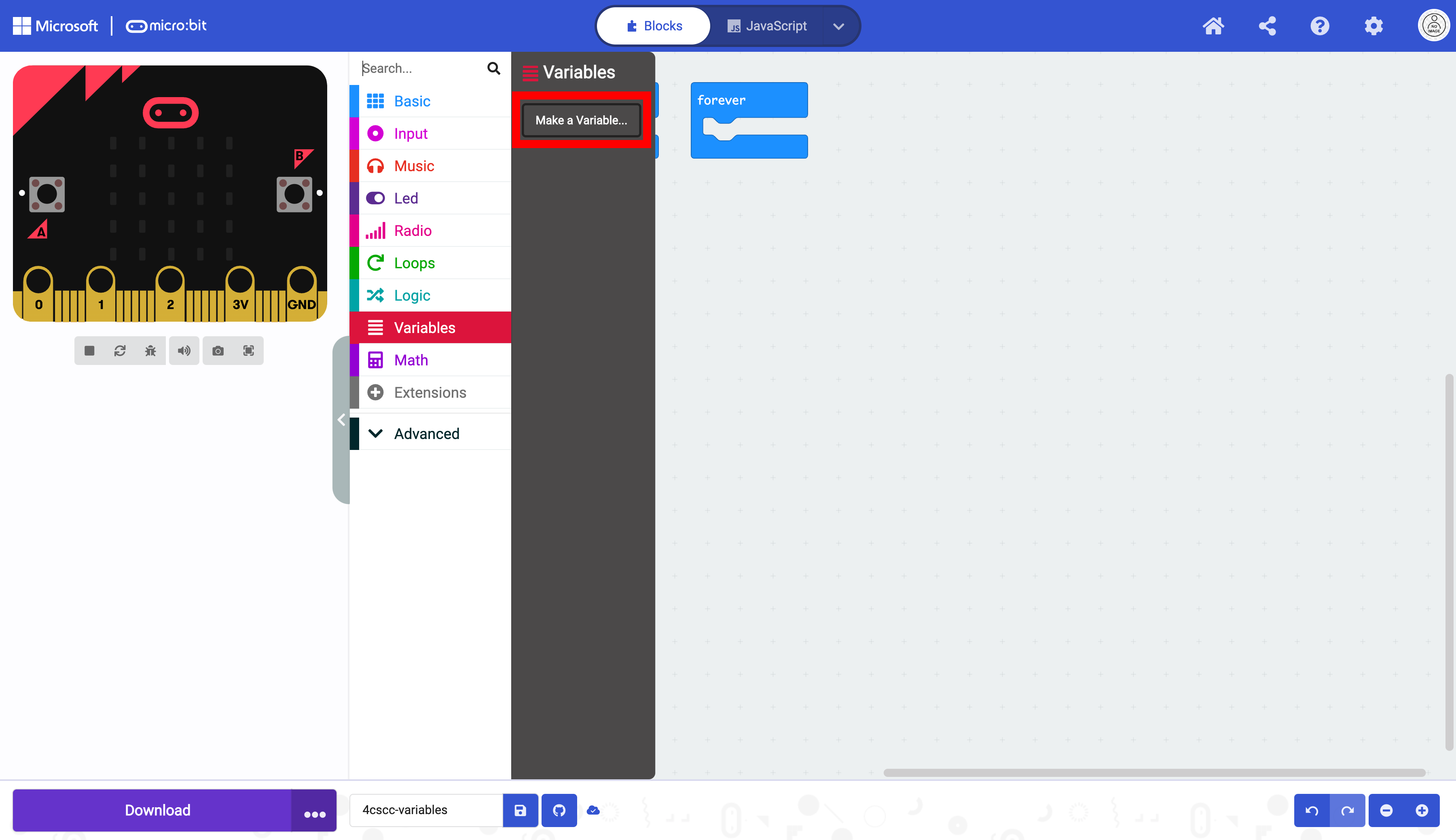
To create a variable, select “Variables” in the Toolbox.

Click on “Make a Variable”.
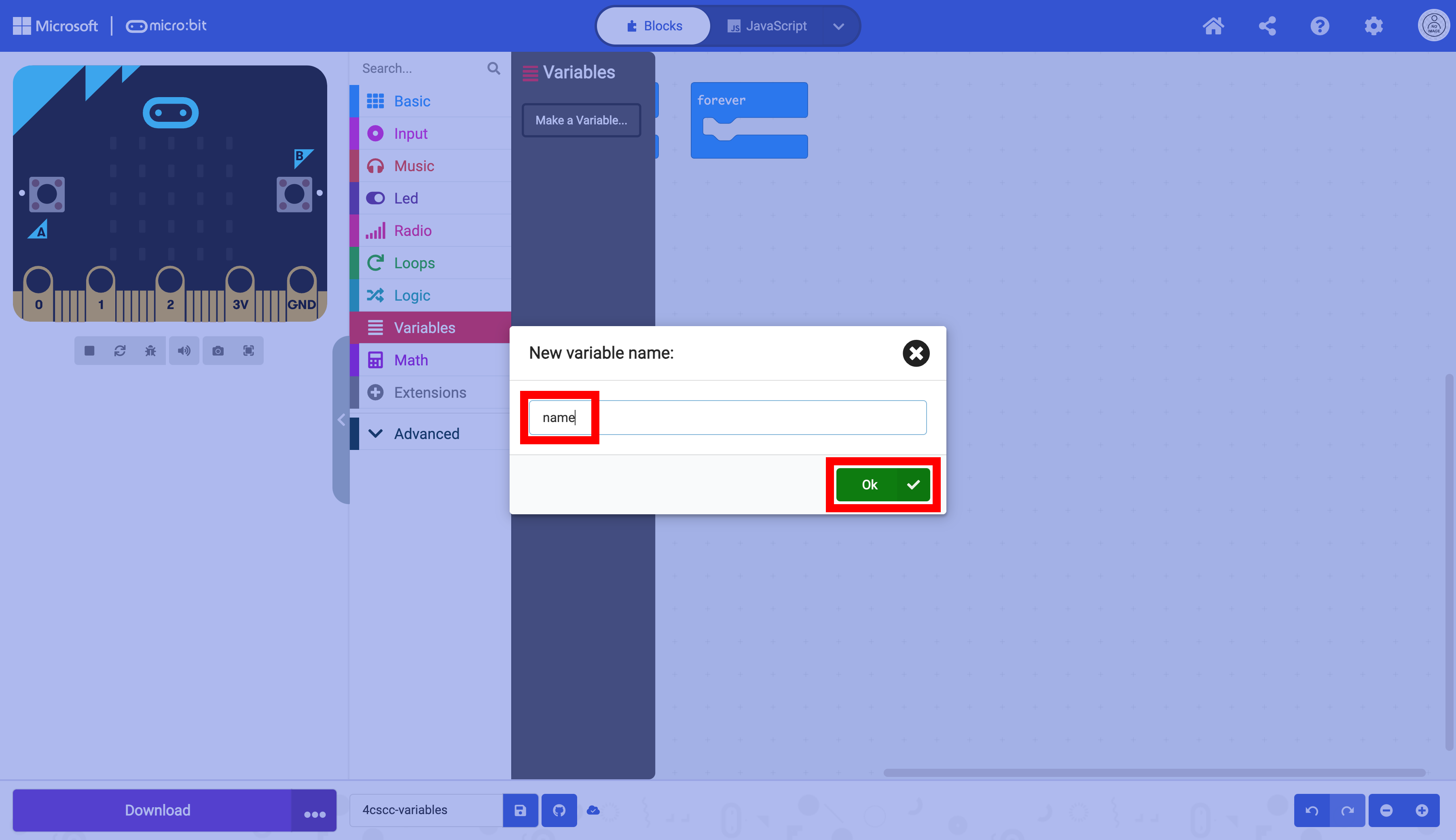
A window will appear with a text box and an “Ok” button.

Enter your “name” in the “New variable name” box, and press “Ok”.
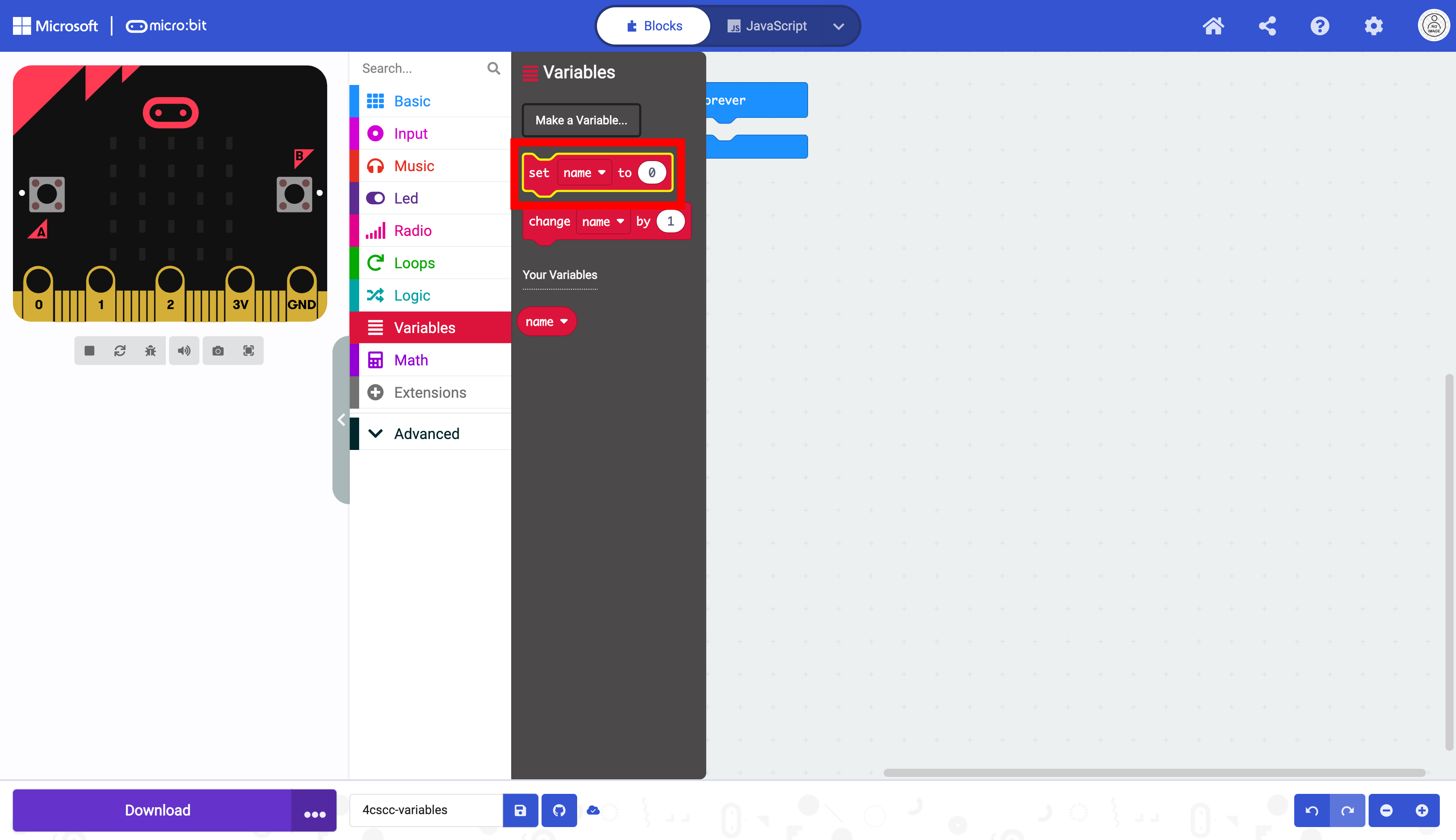
A new set of blocks related to the variable you created will appear.

Select the set block.
Place the set box in the forever block.
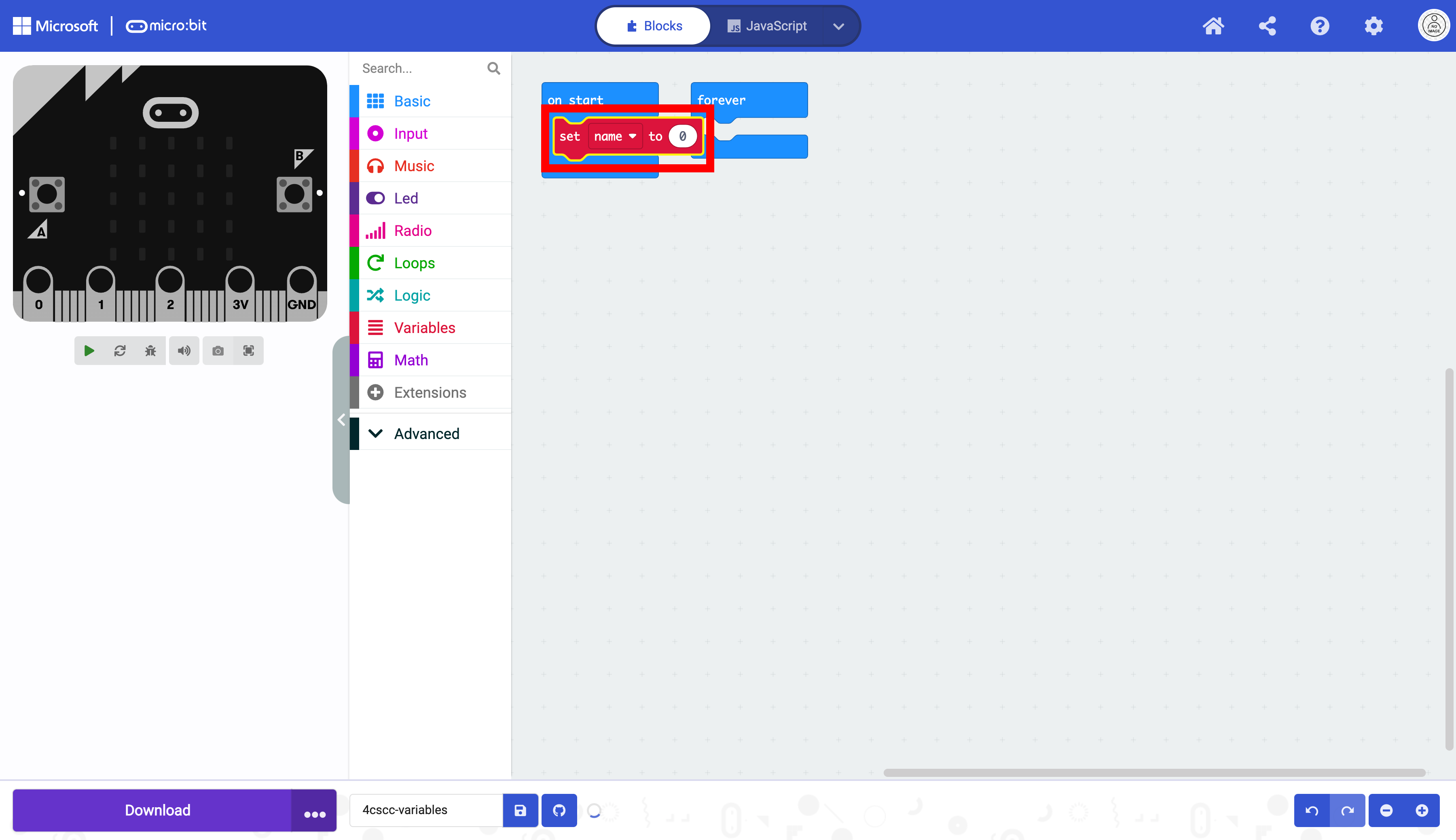
Move the forever block.
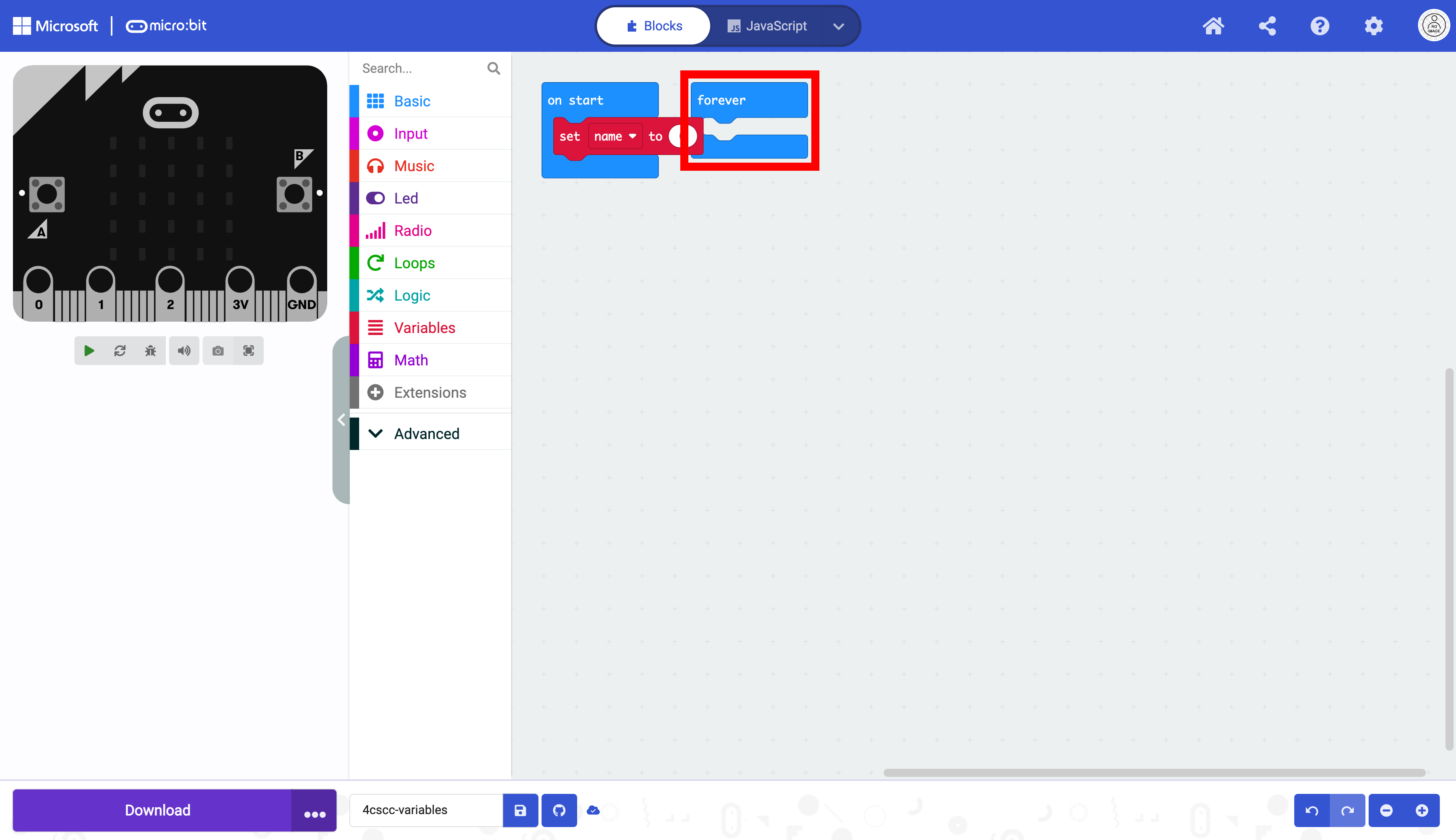
It is now visible without obstruction.
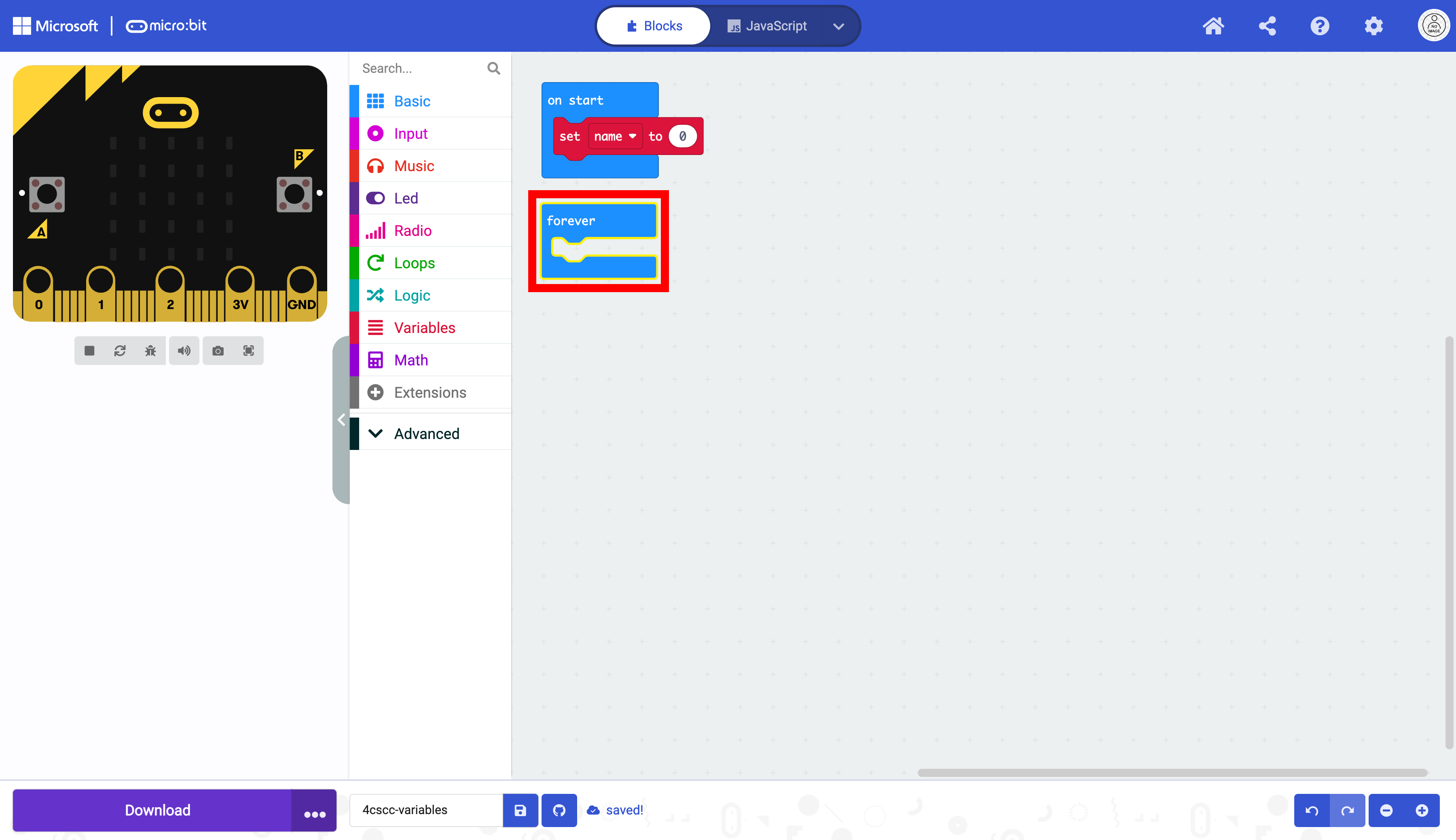
You now need to add a string to the oval with a 0. Select “Advanced” in the Toolbox.

Next, click on “Text” to see the blocks that are used for strings.

Select the empty string " " block.

Place the empty string " " block in the oval in the set block. Change the string to your name.

Now click on the “Basic” drawer of the Toolbox.

Select the show string block.
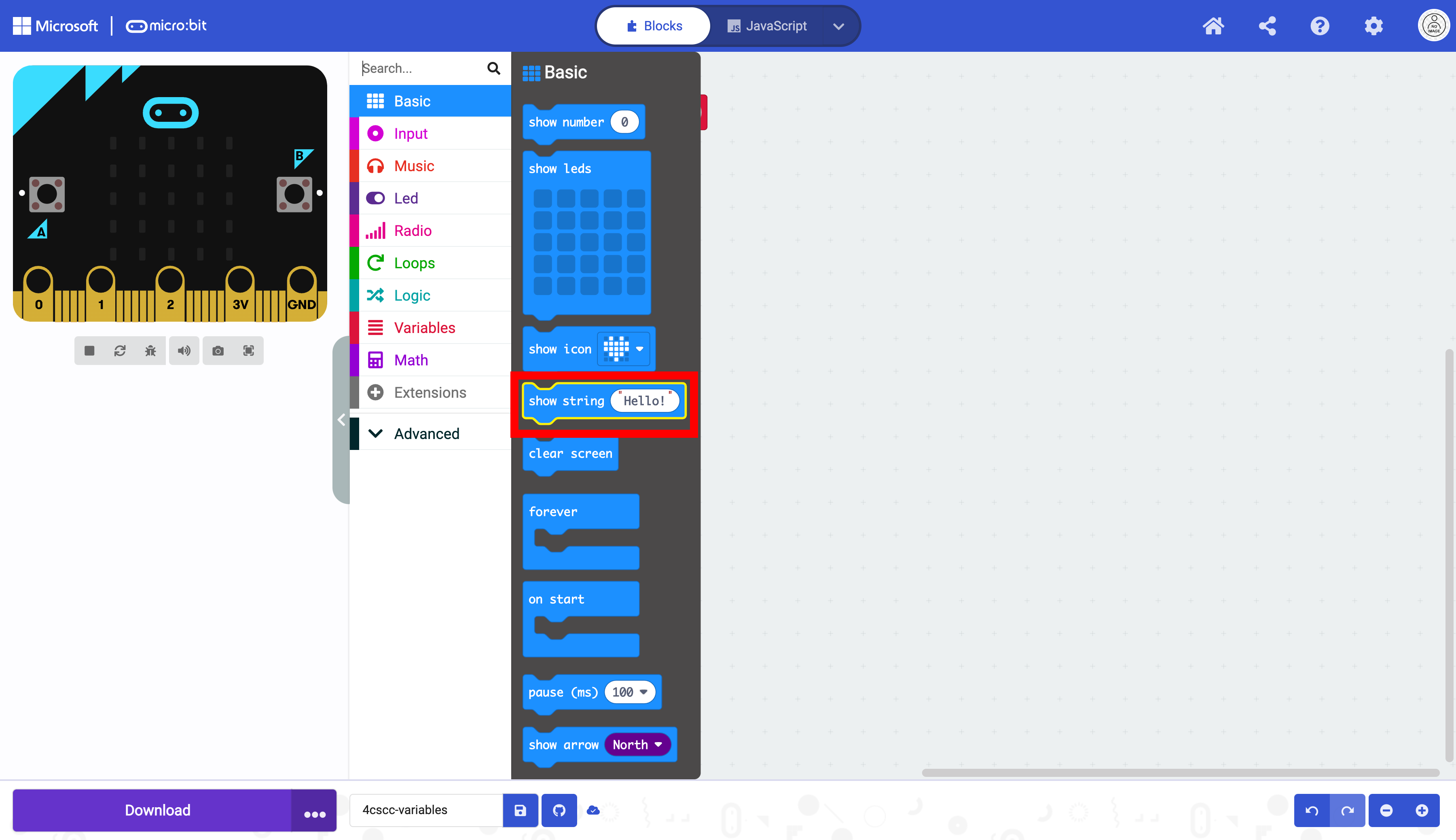
Drag the show string block into the forever block.

Click on the “Variables” drawer of the Toolbox.
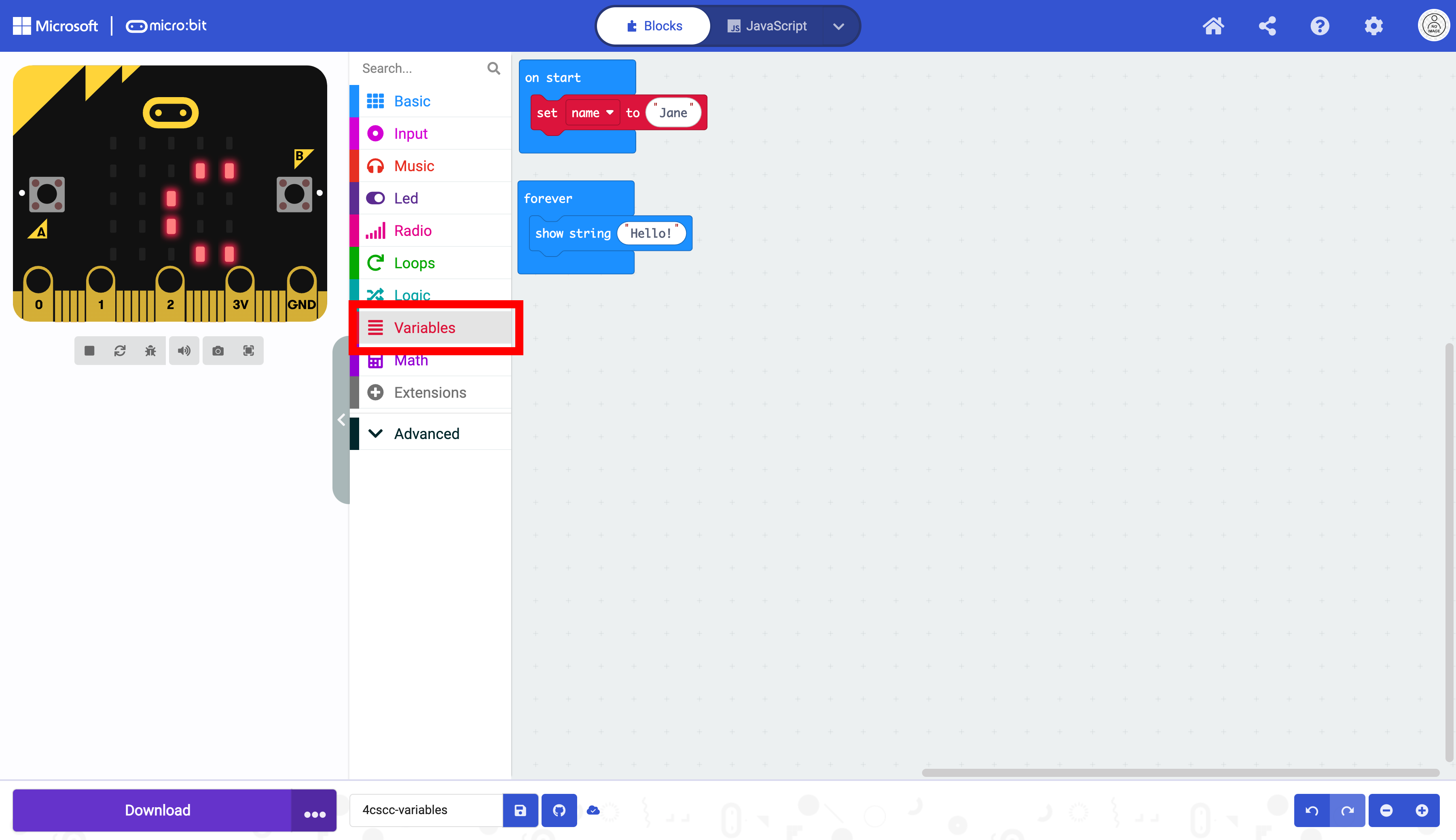
Select the variable name
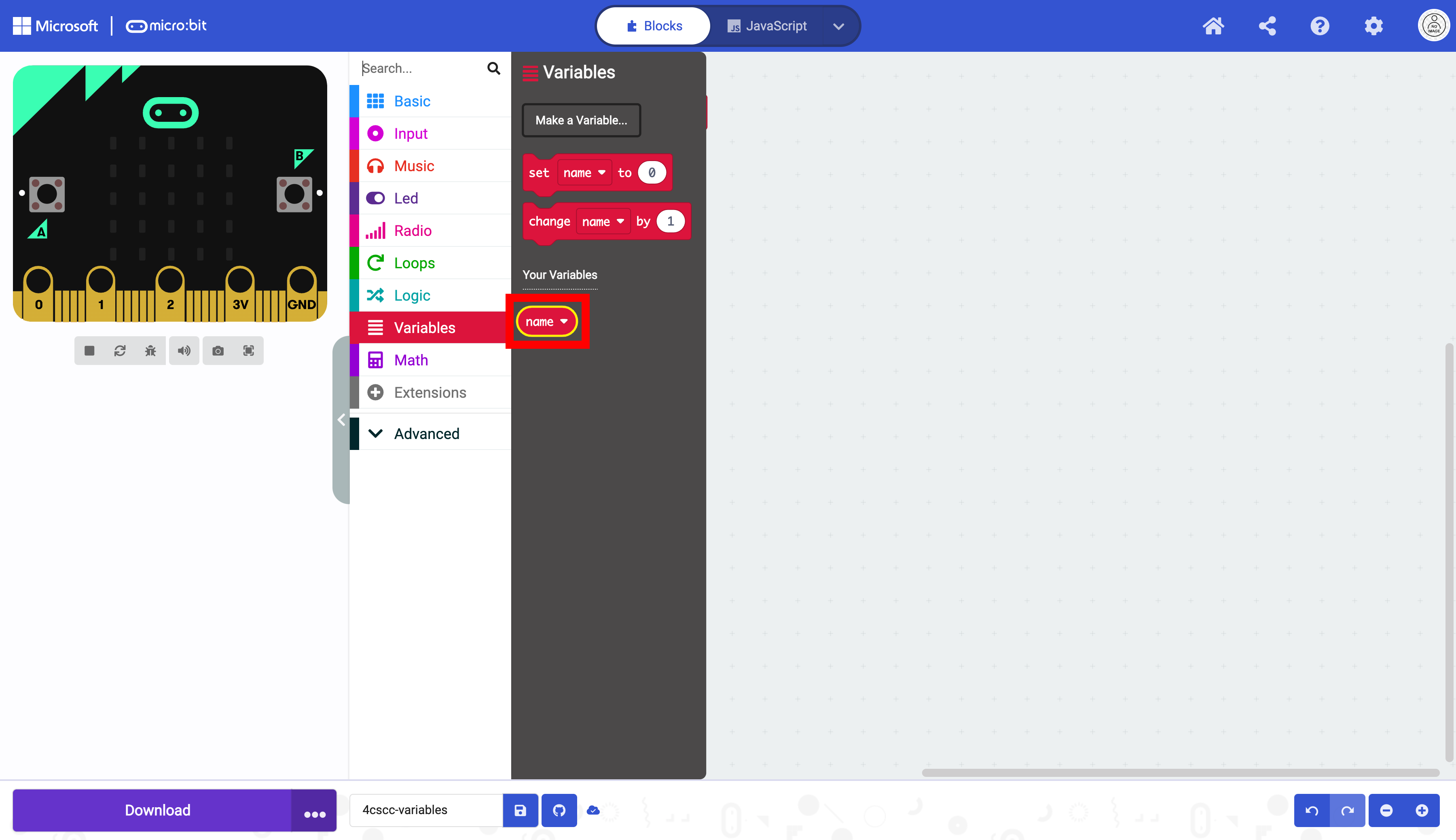
Place the variable block name in the show string block.

The code is now ready to be flashed on the micro:bit.